
In a previous post, I’ve written about moving away from Microsoft Windows to something Linux. In that post, I wrote about remote work, generally, and showcased that there is software like or similar to what Windows has. In this little post, I’m going to focus more on the productivity side of working on a Linux desktop. Are there alternatives to Excel? Can I find software to do presentations? Will I be able to write my book? Can I cut and edit my media? The short answer is Yes, to all those questions. But I can’t leave you with a short answer, can I? Probably not. Here’s a small little guide on how to do the most common things on your Linux desktop. Keep in mind that this is very much my personal favorites and there is a vast myriad of software out there, that might be a better fit for you. It’s also worth a mention that all the software I am going to talk about in this post is free. I will link to the websites but generally, all can be found within the software manager.
Office.
For starters, there is, of course, Google suite that can be found within Chrome itself. It has everything needed for an office suite; Spreadsheets, Presentations, Word processor. If G-suite is not your thing, there is LibreOffice, which also has everything you need. Libre is a forked-off version of Apache OpenOffice, which is also available for Linux desktops. My go-to is Libre for when I need to do more heavy work. For simple word processing, I just use G-suite. G-suite is compatible with Grammarly if you use that.

Image manipulation.
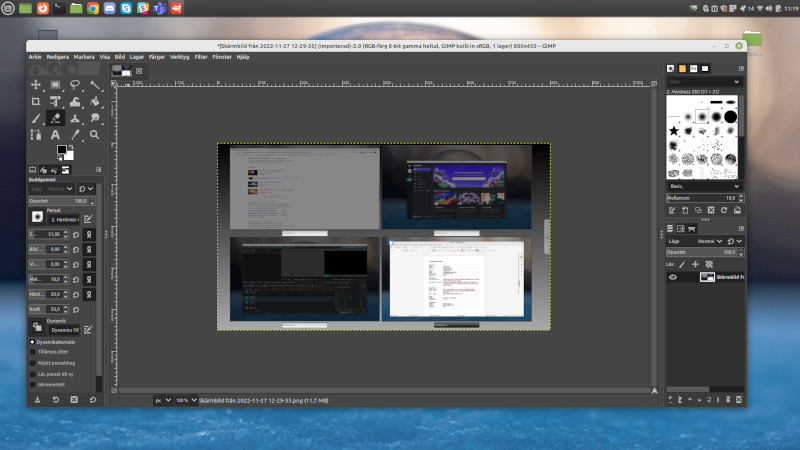
On Windows, most professionals use Photoshop to manipulate their images. While you could use a virtual machine running Windows inside Linux, I don’t. For me, it’s GIMP which is the one I go to when I want to play with photos. It has all I need.
Video editing
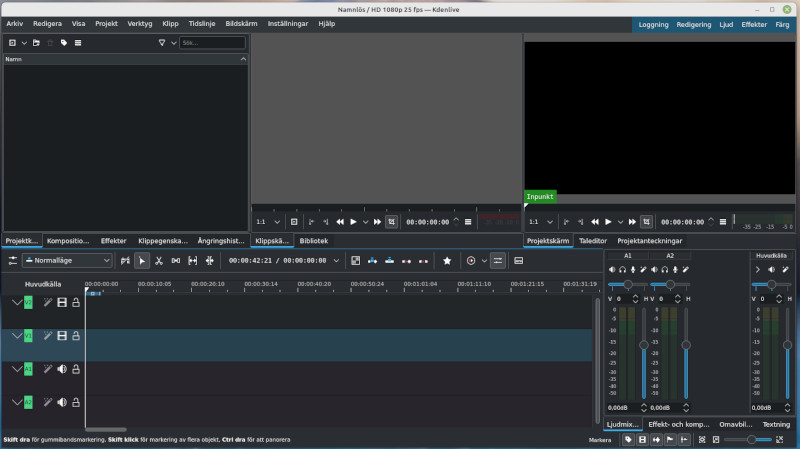
I don’t edit video that much but when I do, I use Kdenlive and love it. There are some other options, like OpenShot or ShotCut so there are only choices you have to make.
Cloud
In this day and age it’s essential to have a cloud storage to sync all your files is and for that there are a few options. The most obvious one being Dropbox, of course. But there are other services out there that are equally good: MEGA offers 20gb storage for free and after that they have several different plans with increasing amounts of storage. IceDrive has a 10gb free plan and several premium plans aswell. IceDrive also focus on security with 256 bits encryption and two steps verification offered.

3D rendering
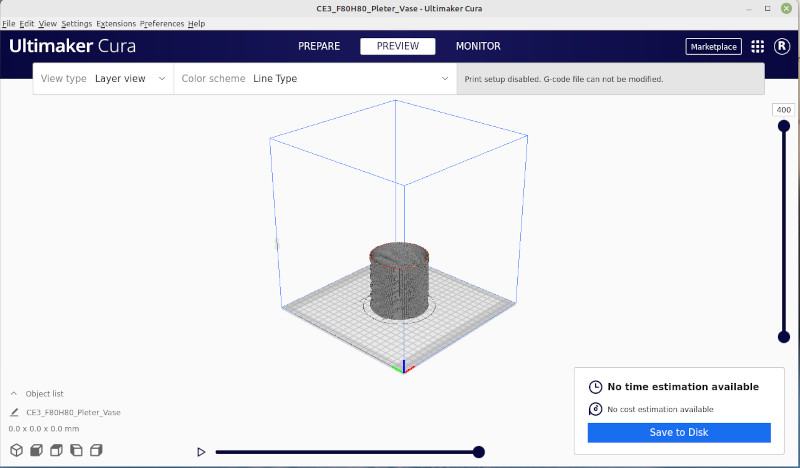
I do some 3d printing and design and here I will present the software I use for that purpose. For slicing my 3d printer projects, there is simply Ultimaker Cura. No better software out there, for that purpose. I love it. When it comes to creating my 3d models there is one piece of software I most often use and that is Blender. If I need something more for CAD purposes, I generally use FreeCAD.
Translations
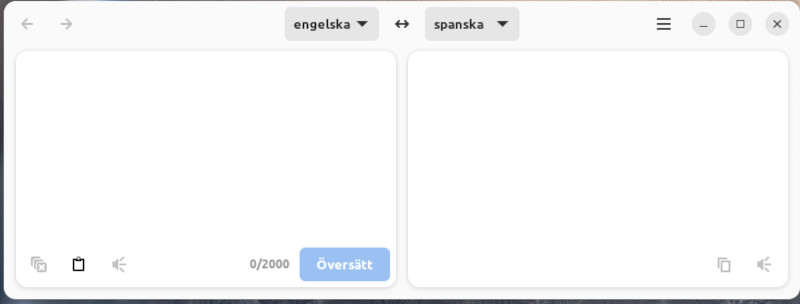
I mainly work in English and my understanding of the language is above norm. Same goes for Swedish. But sometimes I come across a word or phrase that I really can’t translate properly so of course I need a translation app for it. Enter Dialect. This nifty little app has access to all the open source languages and can translate a variety of words, phrases and sentences.
Audio recording and editing
Audacity is a simple yet powerful audio editor that fits my needs as a voice actor and voice-over artist. There are many other audio editors out there that have some special things but for basic recording and cutting, audacity is enough.

I’ll wrap this up here. Hope you found some of this helpful, if you’re thinking about moving over to Linux or if you have already made the move and looking for guidance.


 The Roine Playground
Lämna ett svar till Move to Linux. A step-by-step overview – Roineland Avbryt svar